Leap Offline
Permission based Leap Offline allows you to circulate materials while your database server or network are unavailable.
Note:
To learn which web browsers are compatible with Leap Offline, see System Requirements.
Each Windows user has a unique installation of Leap Offline for each browser they use. Installation of the application is initiated through Leap and should be bookmarked for future use. The application uses the local storage features of your browser to store limited installation data that is required to process offline transactions. No patron data is stored locally.
The Leap Offline application is shown below:
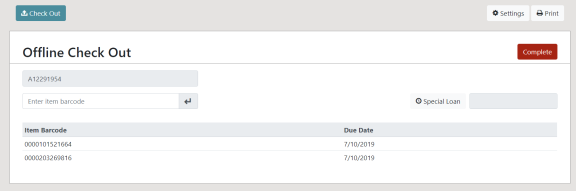
Offline transactions are stored in the local storage of the user's browser until the user chooses to send them to the server for processing or to delete them.
As you work in Leap offline, you will see your transaction count increment with each checkout. The Transactions badge will keep you informed of your progress.
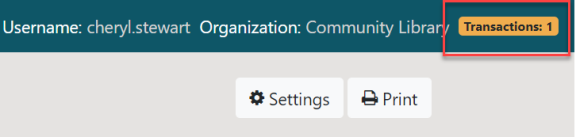
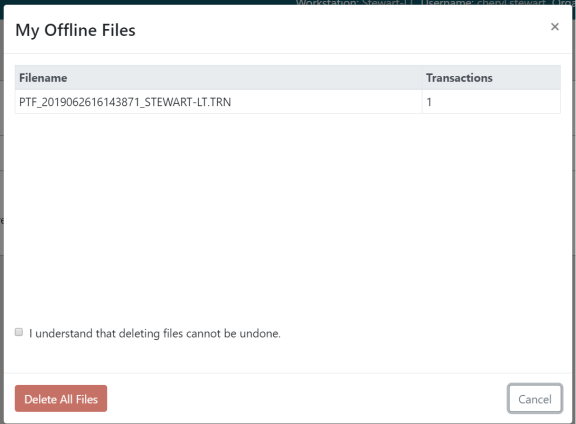
Selecting the Transactions badge opens a dialog showing all the offline transaction files you have generated, with an option to delete them. Deleting files cannot be undone.
See:
Setup Permission
A system administration permission to control which users can complete the Leap Offline installation is available. Select Security > Leap > Setup Offline > Allow.
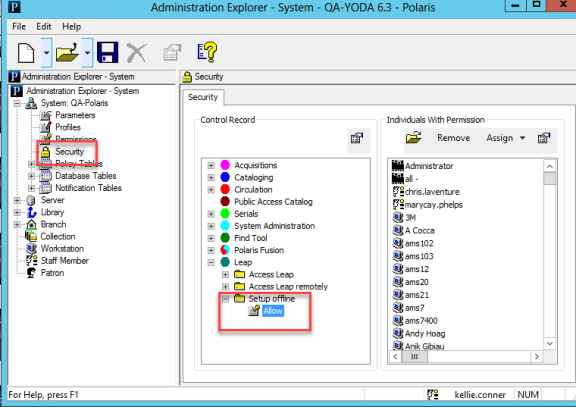
- This permission is not assigned at upgrade.
- Workstation access is permitted by default.
- The permission is not overridable.
Installation
You must have the Leap Offline permission enabled and use a compatible web browser to install the application.
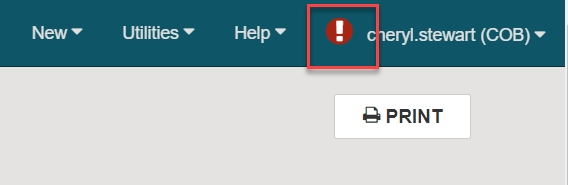
- If Leap Offline has not been previously installed, you will see an installation Warning icon. To install, select the Warning icon:
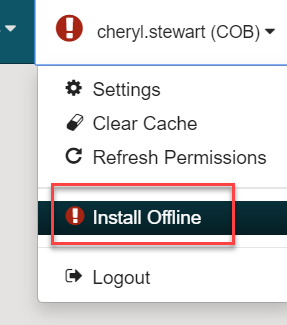
- Select Install Offline.
The following message appears: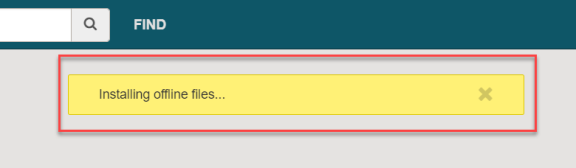
- Select Leap Offline.
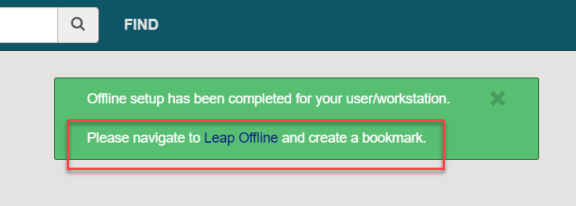
- Leap Offline opens in the browser.
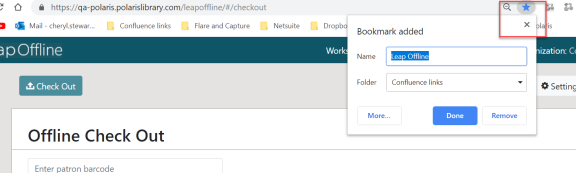
Note:
The URL used to access Offline is case sensitive, and you should create a bookmark for it to access the Leap Offline application for future sessions.
Note:
Offline data (both setup data AND actual transaction data) is stored in the local storage of the user's browser. You should not clear your cache while you have unprocessed offline transactions.
Refresh Installation
You have an option to update your Leap Offline installation with any changes made to system administration without manually clearing your cache and renstalling the application.
This option is found in the Leap application. Select User Profile > Refresh Offline Installation.
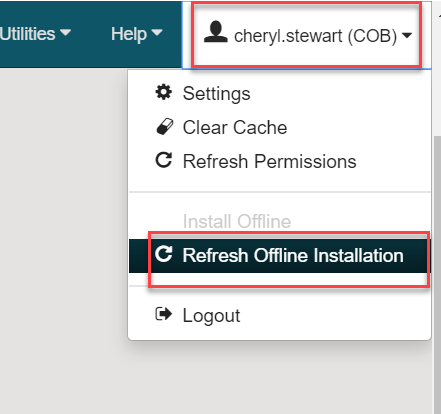
Refreshing the installation updates with the following values:
- User ID
- User Name
- Workstation ID
- Workstation Branch ID
- Workstation Name
- Branch ID
- Standard Loan Period
- Branch Name
- Branch Phone
- Branch Home Page
- Branch Receipt Note
- Locale Name
Settings
The Settings workform in Leap Offline has several options.
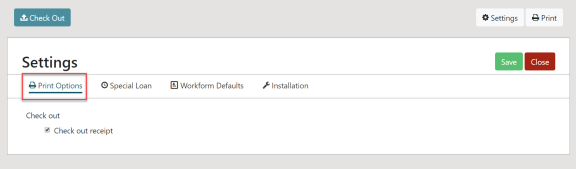
Select Print Options to enable Check Out receipt printing for patrons. This selection is persistent unless the cache is cleared.
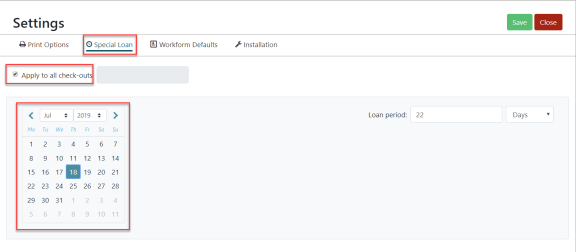
Select Special Loan to set a special loan period that applies to all checkouts. If selected, this value is stored globally for the loan session.
Select Workform Defaults to view the value that is used to calculate the due date if the user doesn't choose to use the special loan. This value is not editable.

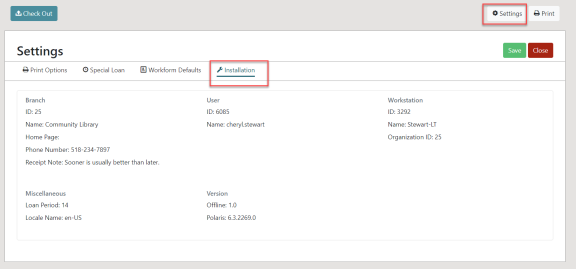
Select Settings > Installation to view installation settings. All values stored in the web browser's local storage during Leap Offline installation are displayed.
Upload Offline Transactions
If you have unprocessed offline transactions when you log into Leap, you will see the following message:

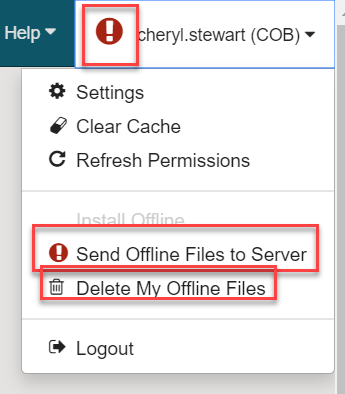
The User profile icon is also set to the Warning icon. Select the icon to access options to process the offline transactions.
- The Send Offline Files to Server option sends all unprocessed offline transactions to the server for processing. All transactions sent to the server will be processed and uploaded using the Automatic Offline Upload process.
- The Delete My Offline Files option deletes all unprocessed offline transactions from the browser. The deleted transactions cannot be recovered.
If you create new patron registration records offline and potential duplicate patron records are found in the database, the potential duplicates are listed in the upload report. You can use the report to find duplicate patron records so you can merge or delete them. See Merge Patron Records for steps on how to merge.