Setting Available Search Types
You can make the following kinds of searches available in Polaris PowerPAC, in addition to the Quick Search feature:
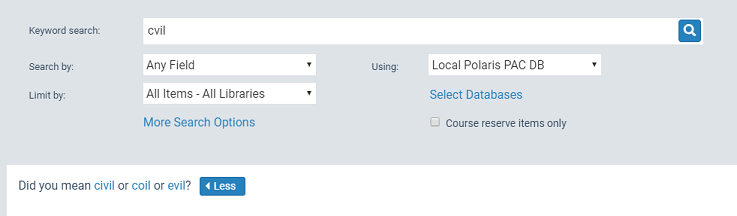
- Keyword - Search for a word or multiple words (in any order) in bibliographic record fields.
- Browse - Browse the title, author, subject, series, and call number indexes in the library catalog database.
- Phrase - Search for multiple words (in order) in bibliographic record fields.
- Exact - Search for multiple words (in order) in bibliographic record fields, including stop words.
- Advanced - Do a complex keyword search by typing keywords and selecting And, Or, and Not operators.
- Boolean - Search by typing a CQL (Common Query Language) command.
- Course reserves - Search for course records and associated reserved items (available only if your Polaris contract includes course reserves)
Note:
Options for community information keyword and browse searches are also available if your Polaris installation includes Polaris Community Profiles, a separately licensed feature. For more information,
You control what searches are available with settings that display or suppress options on the Search menu.
To set the search types available in Polaris PowerPAC:
- In the Administration Explorer tree view, open the Profiles folder for the organization, and click the PowerPAC tab in the details view.
- Set the following profiles to display or suppress the appropriate search types; by default, all are set to Yes (available):
- Navigation: Advanced
- Navigation: Boolean
- Navigation: Browse
- Navigation: Course reserves (available by contract)
- Navigation: Exact
- Navigation: Keyword
- Navigation: Phrase
- Select File, Save.
Related Information
- Quick search setup (Polaris PowerPAC) - You can offer a quick search feature on the portal page that includes search option buttons. See Customizing Portal Page Features.
- Search filters (Limit by) - PAC offers a set of standard formats/types of material and custom search filters in the Limit by list. Users can select a filter before launching a quick, keyword, phrase, exact, or advanced search. See Setting Up Search Filters (Limit By).
- Default search settings - Users can select various settings for each type of search. For example, for keyword searches, patrons can set a search field, search filter, search database, and sort order for the results. You can set the default selections for these options. See Specifying Default Search Settings.
- Remote databases (Z39.50 search targets) for PAC searches - See Managing Federated Search Targets .
- Subscription databases for PAC searches - See Managing E-Sources.
- Course reserve functions - See Setting Up Course Reserves.
- Search results display - You can determine what data to display in PAC search results. See Configuring the PowerPAC Title Display.
- Search Agent - Using the search agent, patrons can save searches and have them run automatically. The PAC parameter Search Agent Parameters controls search agent functions for both Polaris PowerPAC and Mobile PAC. When the search agent is enabled, the Save Search link is available in the Polaris PowerPAC and Mobile PAC. See Setting Up Saved Searches in the PAC.