Item Record Bulk Change Templates
You can save and reuse item record bulk change settings as Item Record Bulk Change Templates. This option requires the appropriate permissions.
Create an Item Record Bulk Change Template
You can use an entire record set or a selection of items to create a template.
- Open an existing record set or create a new one.
- Use the entire record set or select items from it.
- Select Tools > Bulk Change.
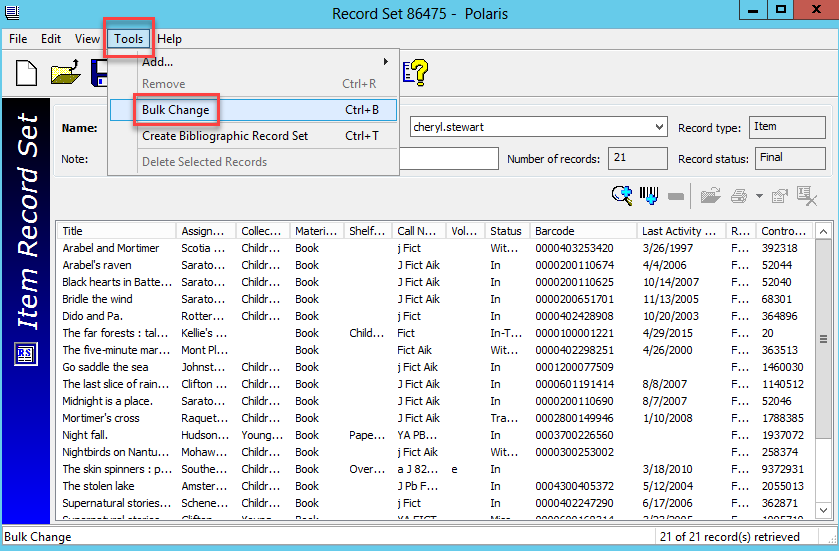
- The Item Record Bulk Change dialog opens. Change the relevant criteria > Save As.
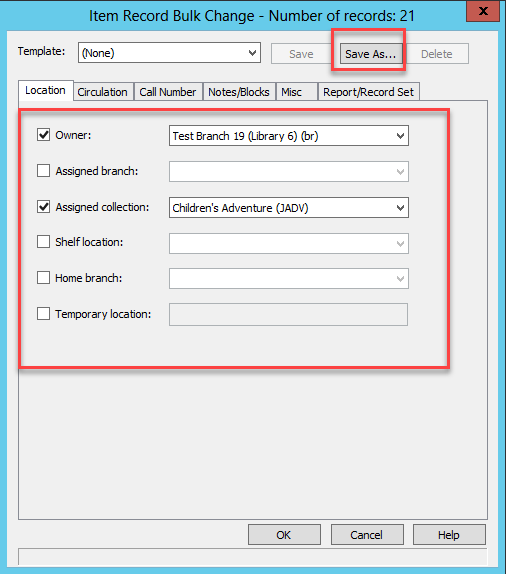
- Enter a name for the template > OK.
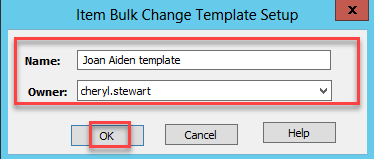
You will see one of the following messages:
- The template was created successfully.
- The template could not be created because a duplicate name was used.
- The template was created but with errors and an option to access an error report.
Use a Template to Make Item Record Bulk Changes
- Open an existing record set or create a new one.
- Use the entire record set or select items from it.
- Select Tools > Bulk Change.
- Select a template from the drop down list of templates that you have access to > OK.
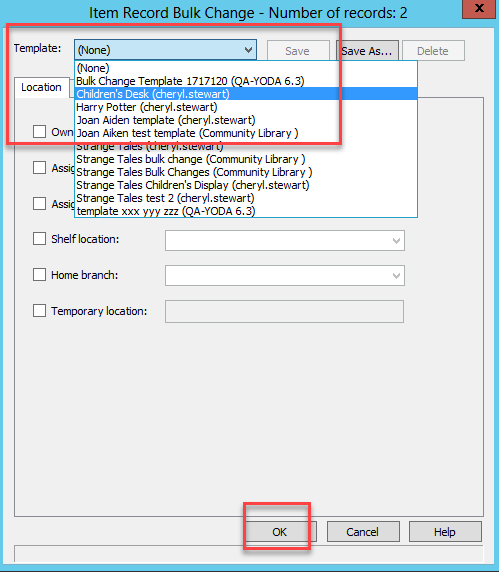
- Review the Summary of Changes > Continue.
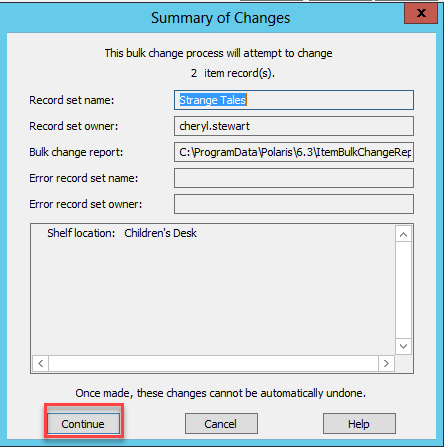
You will see one of the following messages:
- The changes were made successfully.
- Changes were made but with errors and an option to access an error report.
Modify a Template
- Open a record set.
- Select Tools > Bulk Change.
- Select a template.
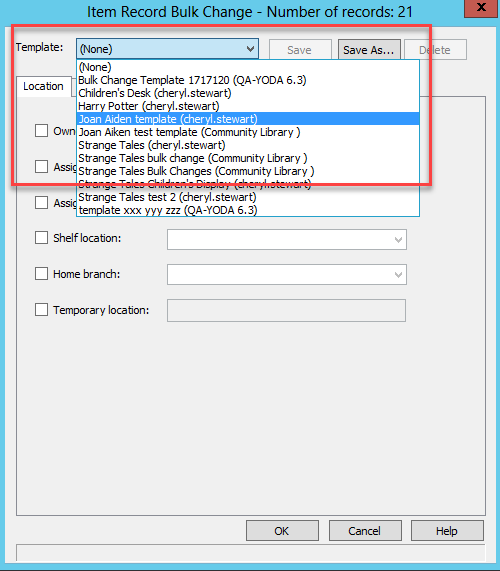
- Change the relevant template criteria > Save.
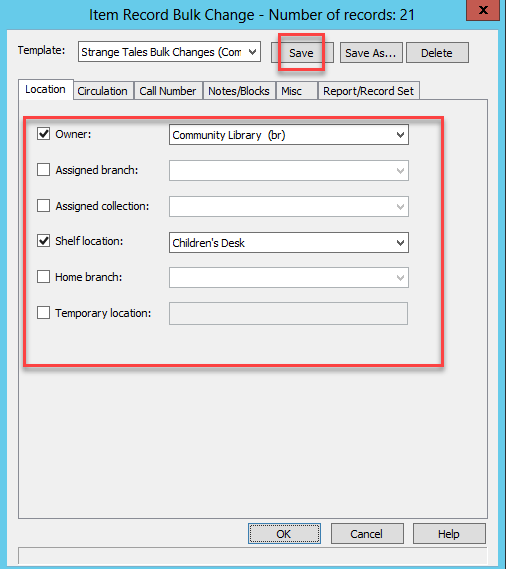
- Select OK.
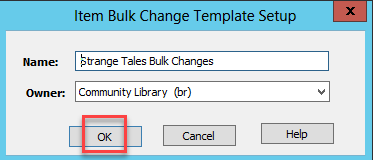
You will see one of the following messages:
- The changes were made successfully.
- Changes were made but with errors and an option to download an error report.
Delete a Template
- Open a record set.
- Select Tools > Bulk Change.
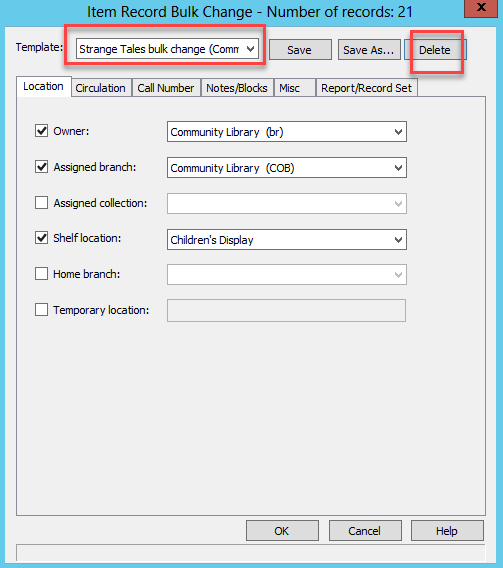
- Select a template > Delete.
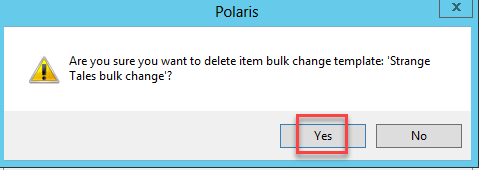
- Select Yes.
You will see one of the following messages:
- The template was successfully deleted.
- An error message that template was not deleted with an option to download an error report.