Set Import Options for Record Sets
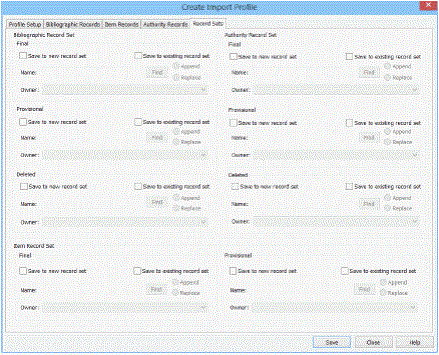
When you are importing records, you can specify that certain types of records are to be grouped in record sets to facilitate record retrieval or bulk processing. If you are importing multiple files in a single import job, each file of MARC records has its own record set. You can set up record sets for grouping the following types of cataloging records: final bibliographic records, provisional bibliographic records, bibliographic records with a deleted status, final authority records, provisional authority records, authority records with a deleted status, final item records, and provisional item records.
To set the profile options for record sets:
Note:
If you specify a bibliographic record set, the imported records are added to it. However, if the profile is set to reject incoming duplicate bibliographic records but retain specific tags from the rejected records, the resident bibliographic record with the retained tags is added to the record set. For example, if you import brief bibliographic records with 970 tags for creating purchase orders, the profile is set to reject incoming duplicate records, but retain the 970 tags. The 970 tags are saved in the resident record, and it is added to the record set. When the record set is bulk-added to a purchase order, the 970 tags automatically create the purchase order line item distribution grid.
- Click the Record Sets tab in the Create Import Profile window.
The Record Sets tabbed page appears.
Tip:
Name record sets so your staff can easily identify them when searching for records. If you are setting up a profile for importing records to bulk add to purchase orders, name the record set to identify the vendor. You can use the profile each time you import records from that vendor. Also, you may want to set the branch as the record set’s owner because if the owner is a staff member, only that staff member can modify the record set.
- For each cataloging record type, choose one of the following options:
- Select Save to new record set, type the name of the record set in the Name box, and select the owner in the Owner box.
- Select Save to existing record set, click Find to locate the record set, and select Append or Replace.
Note:
If you have specified a record set for records with a status of Deleted, imported records with a status of Deleted are put in a record set. In addition, existing records that are overlaid by duplicate incoming records are put in the Deleted record set.
- Click Save to save the profile, and click Close to close it or click another tab to make other settings.