Print Overdue, Bill, Fine, or Request Notices
To print overdue, bill, fine, or hold request notices:
- Select Utilities, Reports and Notices on the Polaris Shortcut Bar (staff client). The Polaris Reports dialog box appears.
- Expand the Notices folder.
- Select the Overdues, Holds, or Fines folder under Notices. The appropriate notices are displayed in the Available Reports list.
Note:
Mailers in various formats for combined notices are listed individually under Notices. Bills are available in the Overdues folder.
- Double-click the notice format you want to print:
- Full Page Mailer - 8.5 x 11 inches
- Half Page Mailer - 9 x 5.5 inches, commonly available half-page mailer stock
- Post Card - 6 x 4 inches
- Z Fold Mailer - 8.5 x 11 inches, folds so addresses are exposed in window envelope
- Z Fold Mailer Oversized - 8.5 x 14 inches, folds so addresses are exposed in window envelope
Note:
Printed notices designed to be inserted in an envelope are formatted for standard #10 window envelopes.
The Report Setup Wizard appears.
- Select the organization(s) whose notices you want to run.
Note:
The organizations available for selection are set in the Report server profile. For more information, see
- Click the Sorting Options tab.
Note:
Your system’s user-defined fields for patron records are included in the sorting options.
The field is moved to the list on the right, indicating that it is selected for sorting. You can select more than one field. The notices will be printed sorted by the first field, and within the first field by the second field, and within the second field by the third field.
The reporting branch name is selected by default. If your library or system does not do central notice processing, you may want to leave this option in place. You can select additional sorting fields. If you do central processing, you may want to move Reporting branch name to the left (unselected) list, and instead select a more useful primary sort for mailing—for example, Patron address zip. You must select at least one sorting option.
To remove a field from the selected list on the right, select the field and click the left arrow button.
- Click Submit. After a few moments, the notices are generated and the Report Preview window opens.
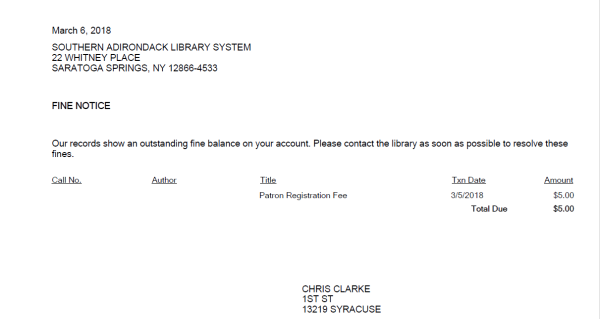
A message asks if you want to post the notices to the database.
- Move the message box to one side and decide whether to post after you print the notices.
- If you are satisfied with the notices in the preview, click Yes.
Important:
When you click Yes, the notices are posted (recorded) as issued, and the appropriate queue for the notice type and branch you chose is cleared. However, the set of notices remains available in your workstation’s My Documents/My Reports folder, and can be reprinted from that location. The file is overwritten each time notices are generated.
- If you see problems, click No. This option allows you to start over, without posting or printing the notices.
Note:
You can click the arrows at the bottom of the Report Preview window to see the notices one by one. Or, click the Pages tab to see several notices at once.
Tip:
You can print a limited range of pages to test the notices. Note that by design, title and author information is limited to 100 characters on all notices.
- Click the printer icon
 to print the notices. The Print dialog box appears.
 - Modify the printer settings, if necessary, and click OK. The notices are printed.
Note:
If you are printing both English and other language notices, they are interfiled.
- Close the Report Preview window.
Related Information
- Printing Chinese, Japanese, or Korean notices - If Chinese, Japanese, or Korean notices are printing incorrectly, you may need to install a different printer driver. Check your printer documentation for more information.
- Printing Acquisitions notices -
- Printing Collection Agency Synchronization Report - See Collection Processing Reports.
- Customizing notice text - The default fine notice text for both mailed and emailed notices is: Our records show an outstanding fine balance on your account. Please contact the library as soon as possible to resolve these fines. You can use the WebAdmin tool to change the text. The mnemonics are as follows:
- Printed and Mailed notices: NT_FINE_M_TEXT
- Emailed notices: NT_FINE_EM_TEXT