Set Import Options for Item Records
To set the import profile options for item records:
Tip:
You can select the system import profile Polaris default with item creation to create item records using default settings. To make changes to this profile, you can copy it and save it with a different name. If you are copying an import profile, and your vendor does not use a subfield, make sure you remove the subfield mapping from the profile on the Item Records tab. See Copy a Polaris read-only import profile.
- Click the Item Records tab in the Create Import Profile window.
The Item Records tabbed page appears.
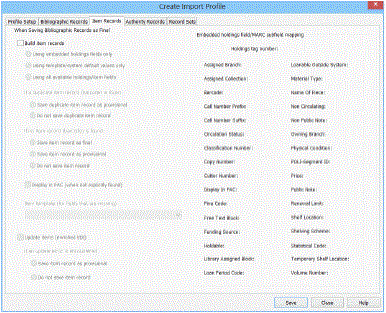
- To create item records when you import bibliographic records, select the Build item records check box.
The other options for building item records become active when you select Build item records.
- If you selected Build item records, select one of the following options for creating item records:
- Using embedded holdings fields only - Items are created from the embedded holdings data in the 852, 949 or other tag in the bibliographic record.
- Using template/system default values only - Items are created from the information in the template and any system defaults for item records. No embedded holdings tags are used to create the item records.
- Using all available holdings/item fields - Items are created from holdings information, if it is available. If the holdings tag does not contain the information but the template does, the field on the item record is filled in from the template.
- Under If a duplicate item record (barcode) is found, select one of the following options to indicate how you want duplicate item record barcodes to be handled:
- Save duplicate item record as provisional to save duplicates as provisional records.
- Do not save duplicate item record if you do not want duplicate item records to be saved.
- Under If no item record barcode is found, select one of the following options to indicate how you want item records without barcodes to be saved.
- Save item record as final - Saves the new item records as final records, even if they do not have barcodes.
- Save item record as provisional - Saves the new items as provisional records if they do not have a barcode.
- Do not save item record - If there is no barcode, the item record is not saved.
- If you do not want the item records to display in the PAC, clear the Display in PAC (when not explicitly found) check box. This option is checked as the default.
Note:
If you use a template, the setting for Display in PAC in the item template overrides any setting made here.
- To use a template to fill in information not specified in the holdings data, select Item template (for fields that are missing) and select the item template from the list.
Note:
The Update items (enriched EDI) option is used only if you are importing full MARC records and creating shelf-ready items. The Enriched EDI Order import profile is already set up to update these items. See Enriched EDI Orders Import Profile.
- Under Embedded holdings field/MARC subfield mapping, type the tag number where the holdings data is located in the Holdings tag number box.
Tip:
The data in the circ status subfield of the embedded holdings field is used except if the circ status code would result in a circulation status that is not allowed for new item records. If the circ status in the embedded holdings is a status such as Lost or Held, the template value is used (if a template is specified) or the item circ status gets the default value of In.
- In each item record field box, type the subfield letter or number for the bibliographic subfield in the embedded holdings tag that contains this information.
Important:
To create item records from embedded holdings in imported bibliographic records, the data in certain required fields must match the data in Polaris. For example, if your profile has defined 852 tag subfield a for the Assigned Branch, the data in $a must match an ID or abbreviation for a branch in your system, and it must not exceed 15 characters. For information on the data conventions in embedded holdings data, see Item Records Created from Embedded Holdings Tags.
- Click Save to save the import profile.
- Click Close to close the profile or click another tab to make other settings.
Related Information
-
Embedded holdings data details and data entry conventions - See Item Records Created from Embedded Holdings Tags.
-
Holdings tags retained during overlay marked with $9 - If the import profile is set to retain embedded holdings tags (such as the 852 or 949) from overlaid records, the specified tags are retained in the bibliographic record before item records are created. If the bibliographic record also has existing embedded holdings tags, they are marked with a $9 and the text Tag retained from duplicate overlay. Item records are not created from embedded holdings tags marked with a subfield $9. See Bib Tags Marked to Prevent Creation/Updates of Items.
-
Mark embedded holdings tags as processed - If this Polaris Administration parameter is set to Yes, when item records are created successfully from embedded holdings tags, a $9 is inserted into the embedded holdings tags in the bibliographic records with the following automatic processing information: Item generated mmm dd yyyy hh:mm[AM/PM].
-
Clean up embedded holdings tags marked with $9 - A utility can be set up to delete embedded holdings tags and other tags (970s) marked with a subfield 9 and specific system-generated text.Set up the Subfield 9 cleanup utility
-
Polaris read-only import profiles - Polaris has read-only import profiles set up to do certain types of processing. You can use these import profiles or rename them while keeping all the settings. See Polaris Read-Only Import Profiles.
-
Shelving scheme - The shelving scheme comes from the subfield in the Embedded holdings field/MARC subfield mapping. If no subfield is specified there, the shelving scheme comes from the template selected in the Item template (for fields that are missing) box. If no template is selected, or if the template does not include a shelving scheme, and the embedded holdings are in the 852 tag, the shelving scheme comes from the first indicator of the 852 tag. If the first indicator of the 852 tag has an invalid value, or the embedded holdings are contained in a different tag, use the default shelving scheme defined in the Polaris Administration Cataloging profile Default shelving scheme for new item records.