Using QR Code Scanning
If your library has enabled QR code scanning, you can scan patron or item QR codes using the camera on your device (for example, a tablet or iPad running Leap).
Note:
Enable QR code scanning by setting the Web App: Enable device camera scanning parameter at the Workstation level in Polaris Administration (staff client). For more information, search for "Leap Parameters Reference" in the Polaris staff client help.
When this feature is enabled, a QR code icon appears in the following locations in Leap:
-
Main search bar
-
Check In workform
-
Check Out view of the patron record workform
-
Item Record Set workform
-
Weeding Record Set workform
To scan a patron or item QR code
-
Select the QR code icon.

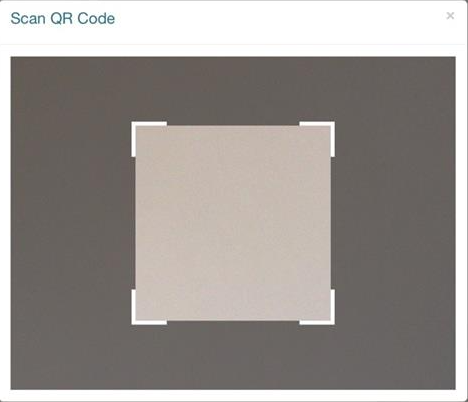
A Scan QR Code dialog appears.
-
Use the camera on your device to scan the QR code.
Leap performs the search, check-in, check-out, or other action for the code you scanned.