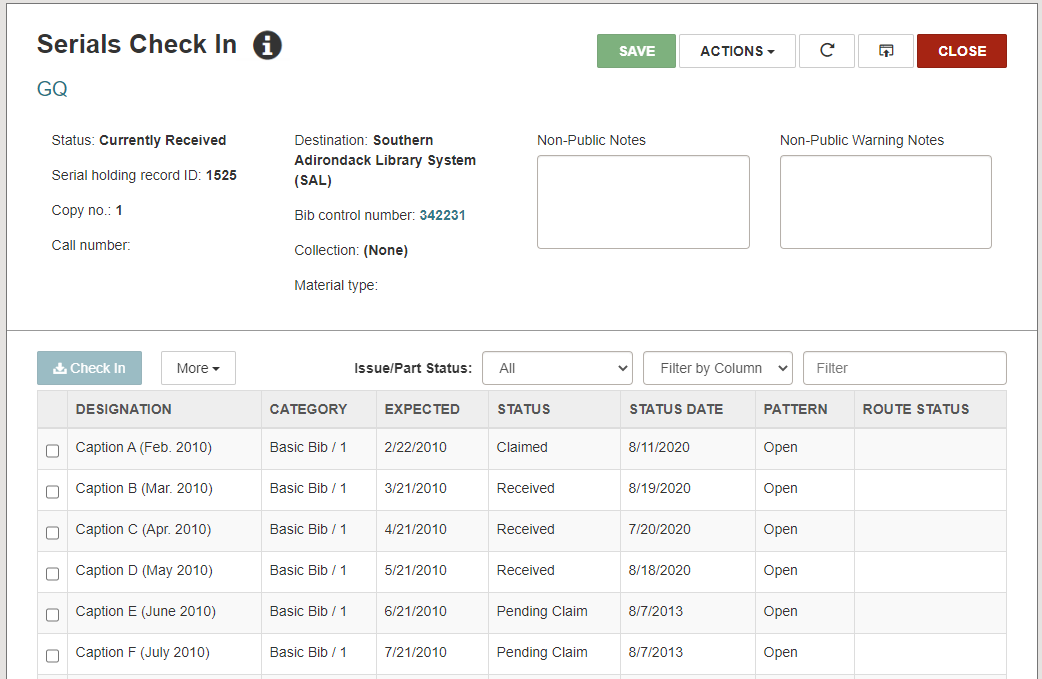
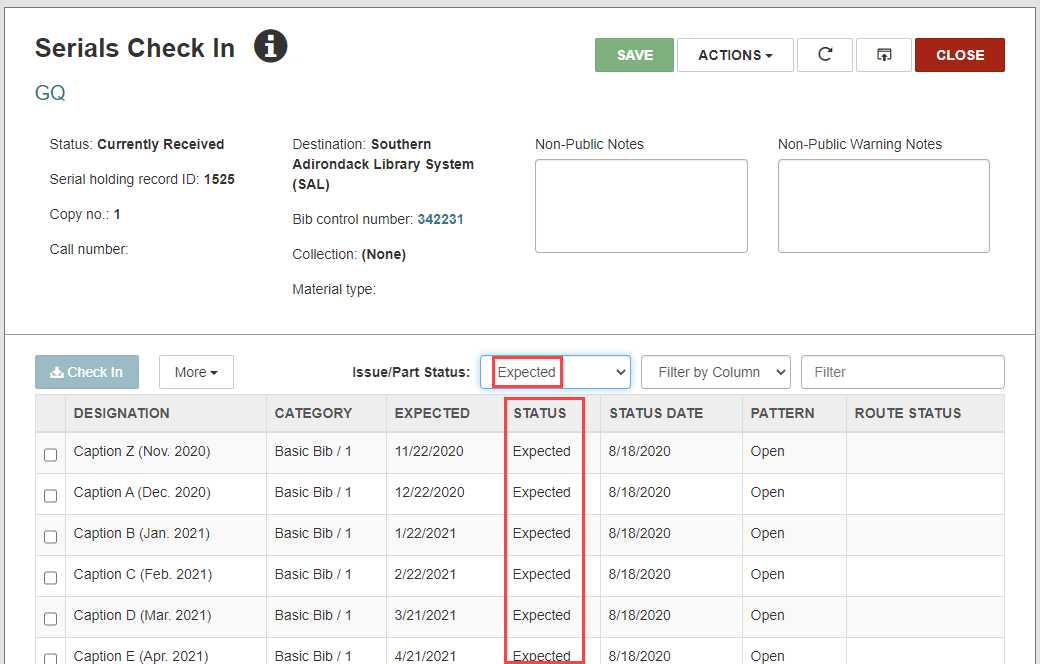
Filter by Serials Check In Status
You can filter the Leap Serials Check In table according to issue or part status.
To filter serial issues or parts
- Go to Utilities > Serials Check In.
The Find Tool - Serial Holdings Record page opens. - Type the title of a serial and select the search icon.
A result list appears. - Select a serial title from the result list and select Open.
The Serials Check In page opens.
- Select a status from the Issue/Part Status list.
Note:
The default selection and Not Available status can be configured in Polaris Administration. See "Specify the Display of Issues on the Check In Workform" for more details.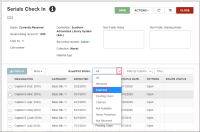
The Serials Check In table shows only the issues or parts with the selected status.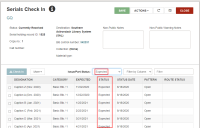
- You can narrow your search further by doing the following:
- Filter by Column to further narrow your results.
- Type a keyword to filter by in the Filter field.
Note:
The Issue/Part Status and Filter by Column work as an "AND" between filters. Set the Issue/Part Status to "All" to use the Filter by Column options only. - Filter by Column to further narrow your results.