Place Multiple Hold Requests for the Same Patron
To place multiple holds at once for the same patron
- Go to the Patron record > Holds view.
The patron’s holds list is displayed.
- Select More > Multiple Holds.
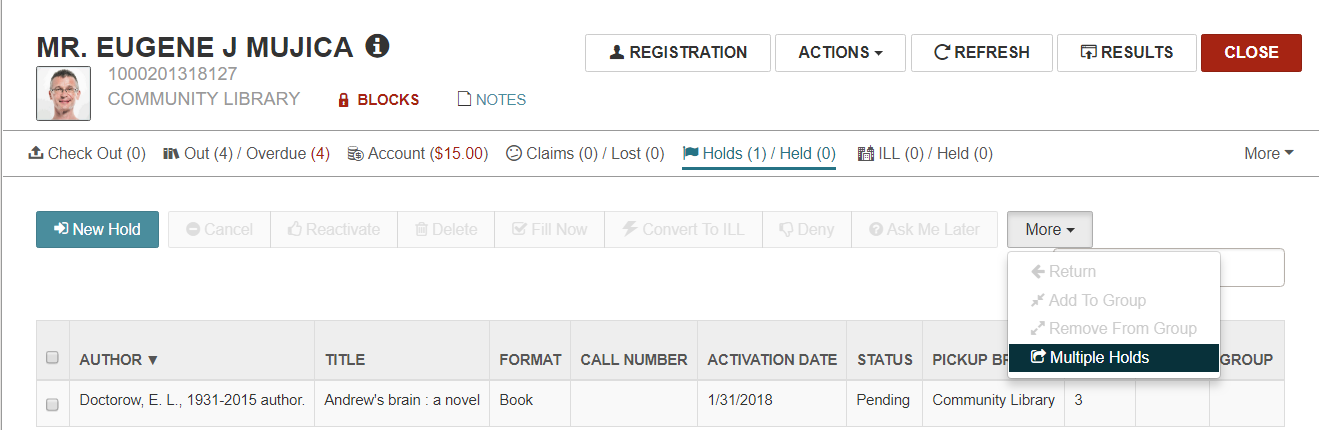
The area below the button bar expands.
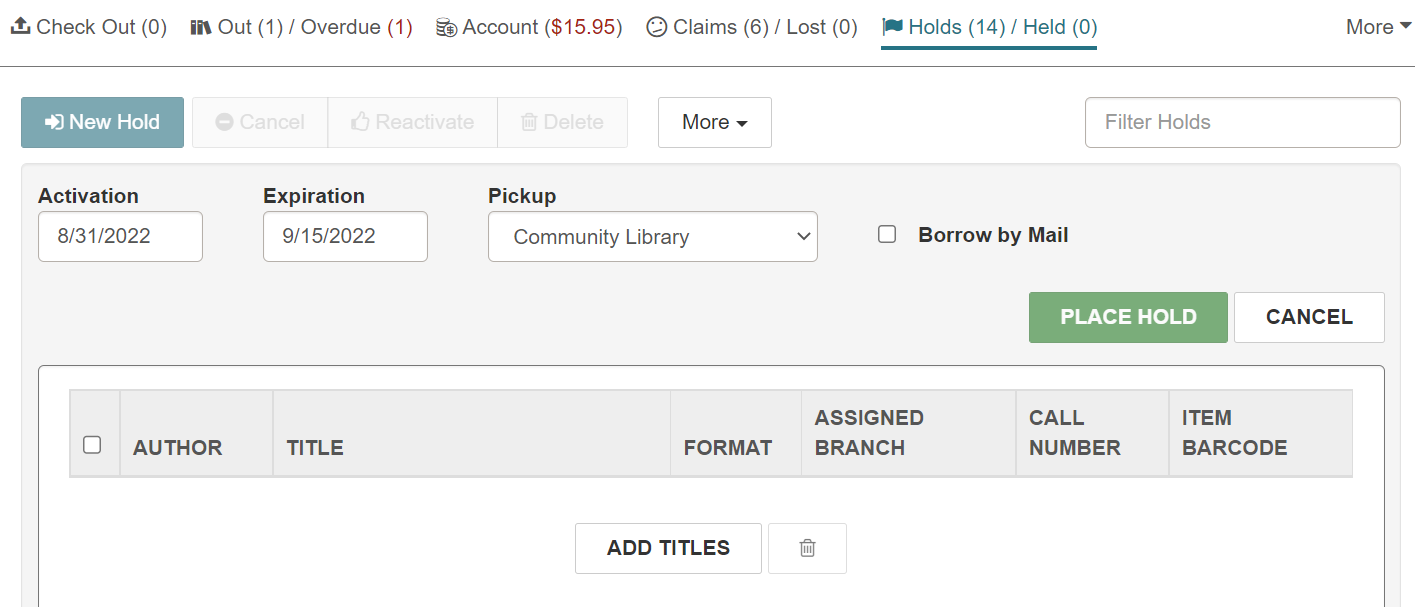
- Select ADD TITLES to open the Find Tool.
- Search for the titles that the patron wants to request.
The search results appear.
- Select one or more checkboxes next to the titles which the patron wants to place a hold on.
Note:
You can search for and select multiple titles at once and select them in the Find Tool results. For example, if the patron wants to place holds on multiple titles with the same author, you can search by author and select the titles in the Find Tool results list.
- Select OPEN.
The titles appear in a list, but the holds are not placed until you select PLACE HOLD.
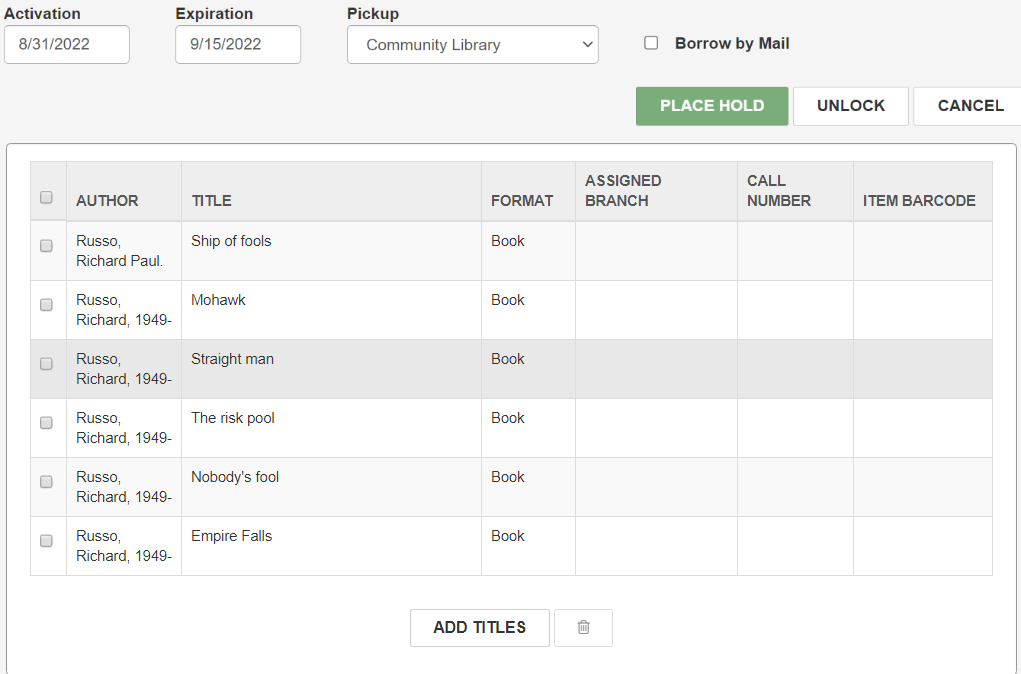
- To add more titles, select ADD TITLES, and search for and select the additional titles.
- When all requested titles are displayed in the list, select the checkboxes next to the titles, or select the checkbox in the column header to select all titles.
Note:
To remove a title from the list, select the corresponding checkbox, and select the trashcan icon.
- If you want to enter notes regarding these hold requests, select Notes to expand the area and type the notes.
- (Optional) Select Borrow by Mail to request that the library deliver the titles by mail. Only libraries licensed for borrow by mail functionality and signed in to the processing center see this option.
- Select PLACE HOLD.
The hold requests are placed on all the selected titles.